

How to back up your iPhone or iPad


How to back up your iPhone or iPad with iCloud
If you back up your iPhone or iPad, you’ll have a copy of your information to use in case your device is ever replaced, lost, or damaged.
- Connect your device to a Wi-Fi network.
- Go to Settings > [your name], and tap iCloud.
![iPhone showing the screen at Settings [your name]. iCloud is selected.](https://support.apple.com/library/content/dam/edam/applecare/images/en_US/icloud/ios16-iphone-13-pro-settings-apple-id-icloud-cropped.png)
- Tap iCloud Backup.
- Tap Back Up Now. Stay connected to your Wi-Fi network until the process ends. Under Back Up Now, you’ll see the date and time of your last backup. If you get an alert that you don’t have enough iCloud storage space to complete the backup, follow the onscreen steps to upgrade your iCloud storage.
![An iPhone showing the screen at Settings > [your name] > iCloud > iCloud Backup. The iCloud Backup toggle is turned on.”></li>
<li>Automatically back up with iCloud Backup</li>
<li>Make sure that iCloud Backup is turned on in Settings > [your name] > iCloud > iCloud Backup.</li>
<li>Connect your device to a power source.</li>
<li>Connect your device to a Wi-Fi network.</li>
<li>Make sure that your device’s screen is locked.</li>
<li>If you get an alert says that you don’t have enough iCloud storage space to complete the backup, follow the onscreen steps to buy more storage.</li>
</ol>
<figure class=](https://support.apple.com/library/content/dam/edam/applecare/images/en_US/icloud/ios16-iphone-13-pro-settings-apple-id-icloud-backup-cropped.png)

How to back up your iPhone and iPad with your Mac
If you back up your iPhone, iPad, or iPod touch, you’ll have a copy of your information to use in case your device is ever replaced, lost, or damaged.
Back up with the Finder
- On a Mac with macOS Catalina or later, open a Finder window.
- Connect your device to your computer with a USB cable.
- If asked for your device passcode or to Trust This Computer, follow the onscreen steps. Get help if you forgot your passcode.
- Select your device on your computer. Learn what to do if your device doesn’t appear on your computer.
- If you want to save Health and Activity data from your device or Apple Watch, you need to encrypt your backup. Select the “Encrypt local backup” checkbox and create a memorable password.
Save your password somewhere safe, because there’s no way to recover your backups without this password. - Click Back Up Now.
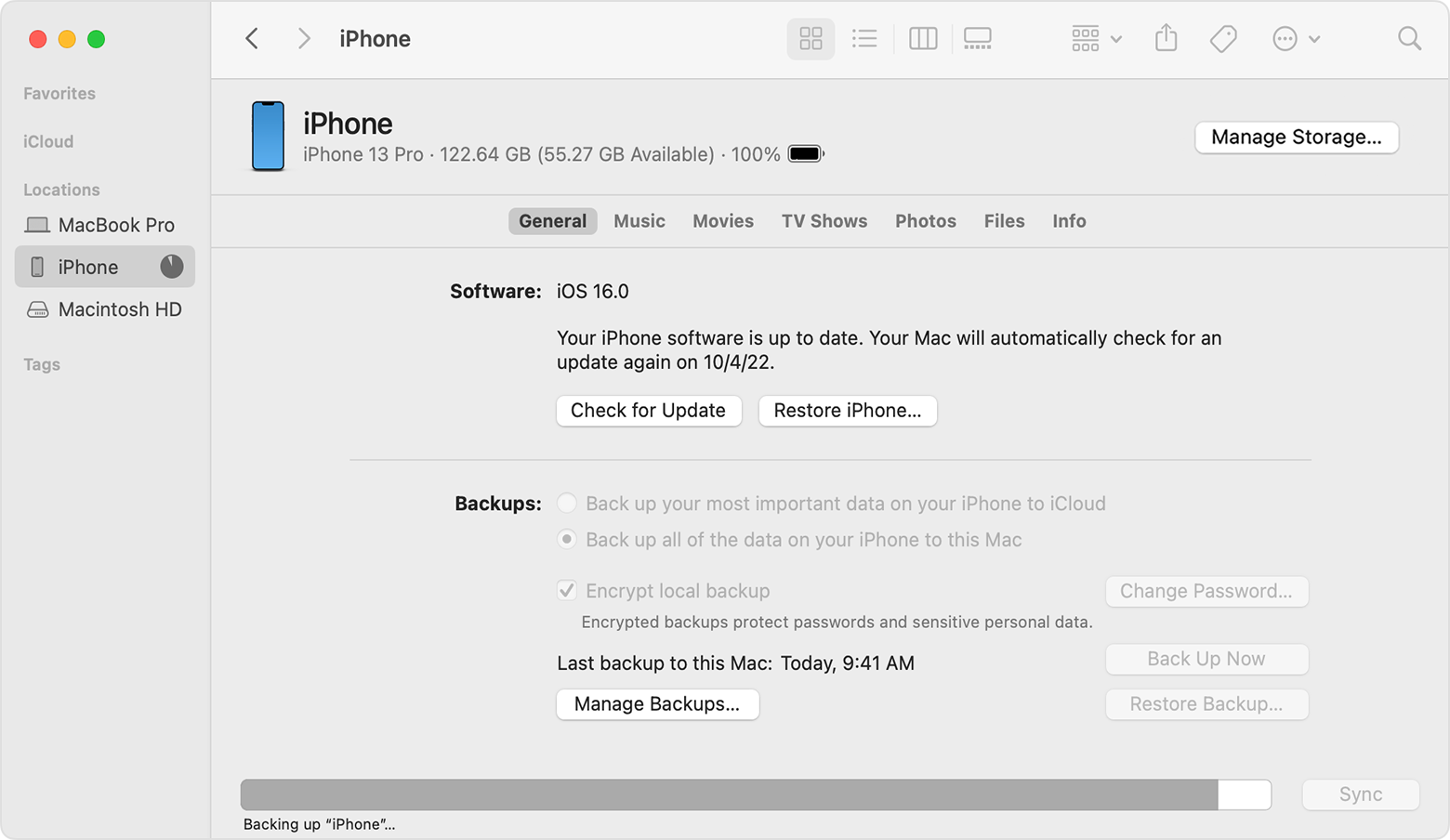
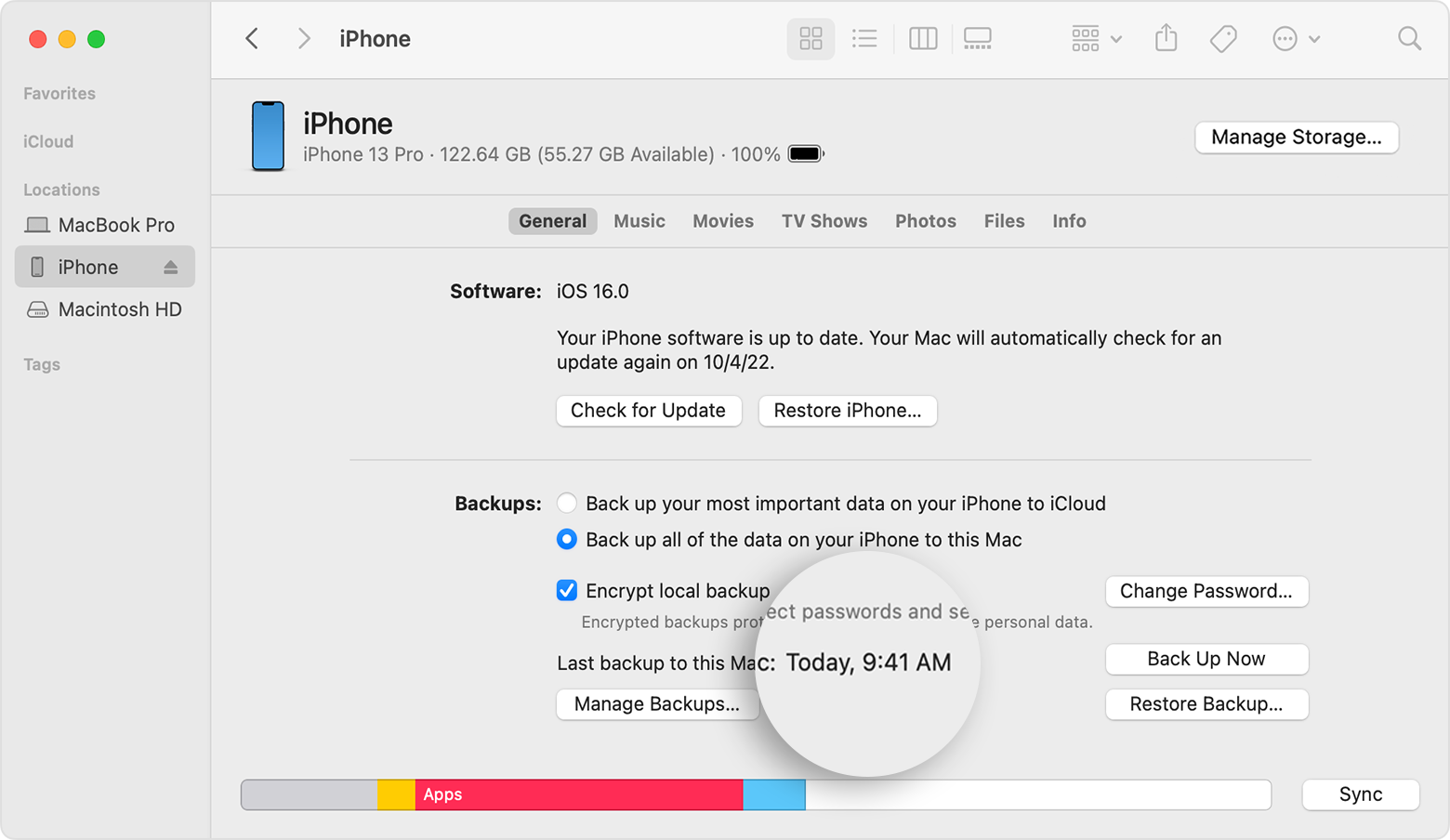
- When the process ends, you can see if the backup finished successfully. You’ll see the date and time of your last backup.
How to back up your iPhone, iPad, or iPod touch with iTunes on your PC
If you back up your iPhone, iPad, or iPod touch, you’ll have a copy of your information to use in case your device is ever replaced, lost, or damaged.
- On your Windows PC, open iTunes. If you don’t have it on your PC, download iTunes.
- Connect your device to your computer with a USB cable.
- If asked for your device passcode or to Trust This Computer, follow the onscreen steps.
- Select your device in iTunes.

- Click Summary.
- If you want to save Health and Activity data from your device or Apple Watch, you need to encrypt your backup. Select the “Encrypt local backup” checkbox and create a memorable password.
Write down your password and store it somewhere safe, because there’s no way to recover your iTunes backups without this password. - Click Back Up Now.
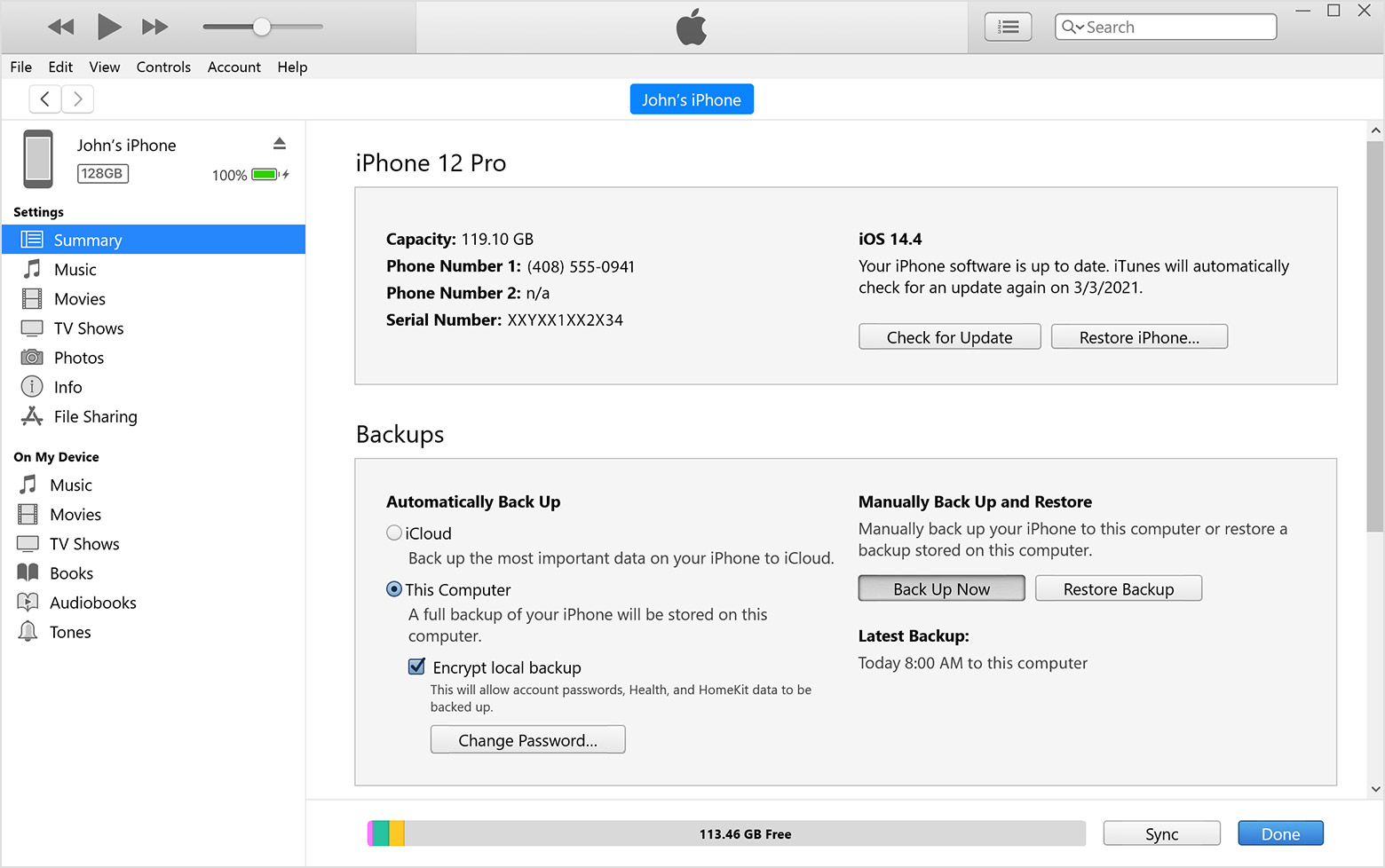
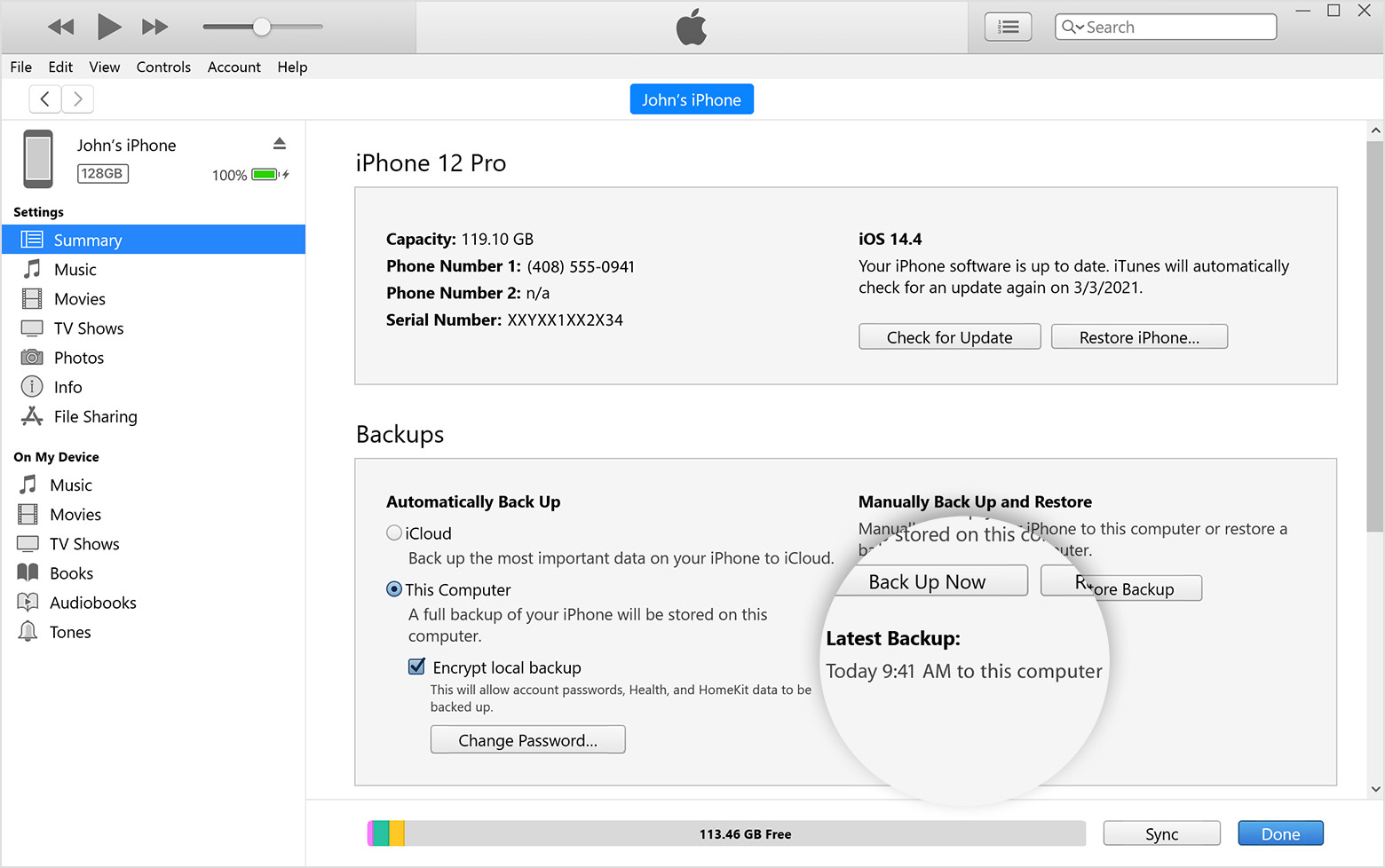
- When the process ends, you can see if the backup finished successfully. You’ll see the date and time of your last backup.
Share via: